Sunday, 16 April 2017

Protect my PC from viruses

This topic is about ways to protect your PC from viruses that can screw up your computer. It also provides tips for taking preventative steps for protecting your PC, guidance for helping to protect your PC, finding and removing viruses, and keeping yourself informed about security issues.

Help prevent viruses from getting on your PC

There are many preventive steps you can take to help protect your PC from viruses and other threats.

  • Use an antimalware app. Installing an antimalware app and keeping it up to date can help defend your PC against viruses and other malware (malicious software). Antimalware apps scan for viruses, spyware, and other malware trying to get into your email, operating system, or files. New threats can appear daily, so check the antimalware manufacturer's website frequently for updates. 

    Windows Defender is free antimalware software included with Windows, and you can update it automatically through Windows Update. You can also visit the list of Consumer security software providers to look for antivirus apps that work with Windows.
  • Don't open email messages from unfamiliar senders, or email attachments that you don't recognize. Many viruses are attached to email messages and will spread as soon as you open the attachment. It's best not to open any attachment unless it's something you're expecting.
  • Use a pop-up blocker with your Internet browser. Pop-up windows are small browser windows that appear on top of the website you're viewing. Although most are created by advertisers, they can also contain malicious or unsafe code. A pop-up blocker can prevent some or all of these windows from appearing. Pop-up Blocker in Windows Internet Explorer is turned on by default.
  • If you're using Internet Explorer, make sure SmartScreen Filter is turned on. SmartScreen Filter in Internet Explorer helps protect you from phishing and malware attacks by warning you if a website or download location has been reported as unsafe.
  • Pay attention to Windows SmartScreen notifications. Be cautious about running unrecognized apps downloaded from the Internet. Unrecognized apps are more likely to be unsafe. When you download and run an app from the Internet, SmartScreen uses info about the app's reputation to warn you if the app isn't well-known and might be malicious.
  • Keep Windows updated. Periodically, Microsoft releases special security updates that can help protect your PC. These updates can help prevent viruses and other malware attacks by closing possible security holes. 

    You can turn on Windows Update to make sure that Windows receives these updates automatically. 
  • Use a firewall. Windows Firewall or any other firewall app can help notify you about suspicious activity if a virus or worm tries to connect to your PC. It can also block viruses, worms, and hackers from trying to download potentially harmful apps to your PC.
  • Use your Internet browser's privacy settings. Some websites might try to use your personal info for targeted advertising, fraud, and identity theft.

    If you're using Internet Explorer, you can adjust your privacy settings or restore the default settings whenever you want.
  • Make sure User Account Control (UAC) is turned on. When changes are going to be made to your PC that require administrator-level permission, UAC notifies you and gives you the chance to approve the change. UAC can help keep viruses from making unwanted changes. To open UAC, swipe in from the right edge of the screen, and then tap Search. (If you're using a mouse, point to the upper-right corner of the screen, move the mouse pointer down, and then click Search.) Enter uac in the search box, and then tap or click Change User Account Control settings.
  • Clear your Internet cache and your browsing history. Most browsers store info about the websites you visit and the info that you provide, like your name and address. While it can be helpful to have these details stored on your PC, there are times when you might want to delete some or all of them�for example, when you're using a public PC and don't want to leave personal info behind.
Security checklist for Windows

Take advantage of all the ways you can help keep your PC safer and more secure with Windows.

Action center. Check Action center to make sure your firewall is on, your antimalware protection is up to date, and your PC is set to install updates automatically.

Windows Defender. Use Windows Defender to help prevent viruses, spyware, and other malicious or unwanted software from being installed on your PC without your knowledge.

Windows SmartScreen. Use Windows SmartScreen to help protect your PC by warning you before running unrecognized apps and files downloaded from the Internet.

 User Account Control. Make User Account Control ask for permission before your PC installs software or opens certain kinds of apps that could be potentially harmful or make it vulnerable to security threats.

File History. Use File History to regularly back up your personal files�like photos, documents, and music�automatically. If your PC has a hardware failure, you can restore any versions of the files that are most important to you.

Windows Update. Use Windows Update to automatically download and install the latest updates for your PC.

Windows Firewall. Turn on Windows Firewall to help prevent hackers and malicious software, such as viruses, from accessing your PC through the Internet.

Update your antivirus software

Antivirus software must be updated regularly to stay effective against new viruses. Most antivirus software is designed to update automatically, but you can also update your software manually.

Windows doesn't come with antivirus software, but it can often detect and monitor antivirus software that was installed by you or your computer manufacturer. The status of your antivirus software is typically displayed in Action Center.

  1. Open Action Center by clicking the Start button 
    Start button icon
    , clicking Control Panel, and then, under System and Security, clicking Review your computer's status.
  2. Click the arrow button  next to Security to expand the section.
  3. If Windows can detect your antivirus software, it will be listed under Virus protection.
  4. Click Update now.

Turn Windows Firewall on or off

  1. Open Windows Firewall by clicking the Start button 
    Start button icon
    , and then clicking Control Panel. In the search box, type firewall, and then click Windows Firewall.
  2. In the left pane, click Turn Windows Firewall on or off
    Administrator icon
     If you're prompted for an administrator password or confirmation, type the password or provide confirmation.
  3. Click Turn on Windows Firewall under each network location that you want to help protect, and then click OK.
  4. If you want the firewall to prevent all programs from communicating, including programs that you have previously allowed to communicate through the firewall, select the Block all incoming connections, including those in the list of allowed programs check box.

Thursday, 13 April 2017

Fix problems that block programs from being installed or removed


?Follow these steps to automatically repair issues including corrupted registry keys that block you from installing or removing programs:

    • Select the Download button on this page.
    • In the File Download dialog box, click Run or Open, and then follow the steps in in the Program Install and Uninstall Troubleshooter.
      • Corrupted registry keys on 64-bit operating systems
      • Corrupted registry keys that control the update data
      • Problems that prevent new programs from being installed
      • Problems that prevent existing programs from being completely uninstalled or updated
      • Problems that block you from uninstalling a program through Add or Remove Programs (or Programs and Features) in Control Panel
Notes
  • This troubleshooter might be in English only. However, the automatic fix also works for versions of Windows in other languages.
  • If you�re not on the computer that has the problem, save the troubleshooter to a flash drive or a CD, and then run it on the computer that has the problem. 

Download

Completely uninstall Office with the easy fix tool

1.Click this easy fix button to uninstall Office.
Download

If you want install it agin ,simply go to 1. Go to https://setup.office.com/ and follow the prompts to sign in (or create a new Microsoft account).

Wednesday, 12 April 2017

Picasa

Picasa is software that helps you instantly find, edit and share all the pictures on your PC. Every time you open Picasa, it automatically locates all your pictures (even ones you forgot you had) and sorts them into visual albums organized by date with folder names you will recognize. You can drag and drop to arrange your albums and make labels to create new groups. Picasa makes sure your pictures are always organized.

Picasa also makes advanced editing simple by putting one-click fixes and powerful effects at your fingertips. And Picasa makes it a snap to share your pictures, you can email, print photos home, make gift CDs, instantly share your images and albums, and even post pictures on your own blog.

The latest version includes Web Albums (along with other improvements), but requires that you request an account from Google.

For Downloading Please Click Here

Tuesday, 11 April 2017

Right-click context menu causes Explorer.exe crash

One of the strangest problems reported by Windows 7 users is an Explorer.exe crash that sometimes occurs when a right-click context menu is opened.

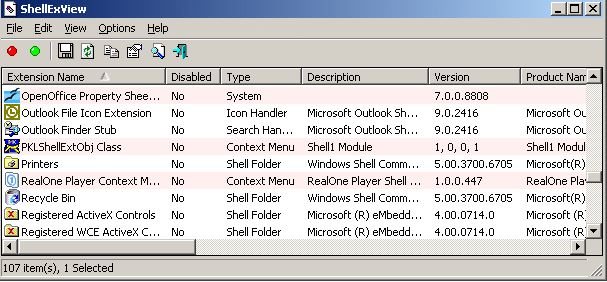
This problem is typically caused by a corrupt context menu entry. Windows doesn�t let you edit the contents of the context menu directly, but there�s a free tool called ShellExView that has this capability. Download it and install it.
For Downloading Please Click Here

Open the program. You�ll see a list of entries, but you only need to worry about Context Menu entries, so sort them by type. A long list of context menu items will appear. Go through them and disable any that are not related to Windows directly (you can tell by reading the entry�s description).

Now close ShellExView and restart your PC. The disabled context menu entries will no longer appear, and the crash should no longer occur.


System Requirements
This utility works on any version of Windows, starting from Windows 98 and up to Windows 10. x64 versions of Windows are also supported.


Description
Shell Extensions are in-process COM objects which extend the abilities of Windows operating system. Most shell extensions are automatically installed by the operating system, but there are also many other applications that install additional shell extension components. For example: If you install WinZip on your computer, you'll see a special WinZip menu when you right-click on a Zip file. This menu is created by adding a shell extension to the system.
The ShellExView utility displays the details of shell extensions installed on your computer, and allows you to easily disable and enable each shell extension.

ShellExView can be used for solving context-menu problems in Explorer environment


Troubleshooting Right Click Issues Caused by Shell Extensions

Symptoms
When you right-click a file/folder, there may be a huge delay before Windows displays the context menu.

When you try to empty Recycle Bin (from Common Tasks), it opens Quick Finder instead.

When you click Play All in the Music or Videos folder Common Tasks, nothing may happen.

When you select multiple files and right click and open / print nothing happens. Whereas, selecting a single file in explorer and right click and open / print, it works fine.

When you right-click a folder in the Start Menu and choose Open or Explore, nothing may happen. (Whereas, it works fine in Windows Explorer.)

Error message "Windows Explorer has encountered a problem and needs to close. We are sorry for the inconvenience" when you right-click a folder.

Right-click is extremely slow only when the network card is enabled.

When you right-click on a folder and choose Properties, nothing may happen.

Your image editing program does not start when you click the Edit button in Windows Picture and Fax Viewer.

Data Execution Prevention (DEP) error occurs when Windows Explorer or Control Panel is launched.
Nothing happens when you click Slideshow or Print in the Tasks pane in Windows Vista.

Unable to launch applications (mainly Windows Installer shortcuts) from the recent programs list in the Windows Vista Start menu.

Device Manager link in the tasks pane does not work in Windows Vista

When you click "Set up backup" or click "Change settings" in Windows 7 Backup and Restore, nothing happens or the System32 folder opens.

When you right-click Start to access the Win+X (Power User) menu in Windows 8 or Windows 10, none of the shortcuts work correctly. Whereas they work correctly when run from the Win+X shortcuts folder.

Sunday, 9 April 2017

Troubleshooting Computer Problems

This page contains answers to common questions along with some tips and tricksthat may be useful.What do I do if...
1. the computer locks up and/or is acting weird?
2. the computer is completely dead?
3. the keyboard doesn't work?
4. the mouse doesn't work?
5. the computer displays a disk error or non-system disk message?
6. the computer starts up in "safe mode"?
7. the printer doesn't work?

Back to Tutorial the computer locks up and/or is acting weird?
1. If the computer is frozen and will not respond to any commands, it may be necessary to press Ctrl + Alt + Del (all three keys at the same time) to bring up the Task List. Select any program that says "Not responding" and click the EndTask button. Repeat until all tasks are ended. If this does not work, turn the computer off, wait several seconds, turn the computer back on, and let the computer run the Scandisk.

2. Reboot it. A majority of problems that occur while you are using your computer can be fixed by rebooting. Applications sometimes dont release memory  like they should when they are finished. The end result is your computer locks upor acts really weird. When you reboot, memory registers are cleared and most everything is reset. This fixes a lot of problems.

Special Note 
It doesn't hurt a computer to leave it running all the time. However, using the computer for long periods of time causes small problems that can build into larger ones. When Windows reboots, it fixes most of these small problems.Therefore, restarting the computer periodically while working can help reduce the risk of glitches.

Back to Top 

the computer is completely dead?
Check all the connections, the cables between the CPU and the monitor and all the electrical cables. Check the wall socket or surge strip to see if they are bad (sometimes a surge strip will have good and bad outlets). If you have a green light on your monitor but not on your CPU, then there is a problem with your CPU.If there is a green light on your CPU and not your monitor, then you have a problem with your monitor and your CPU may be fine. If you have another monitor that you know is good, the quickest way to test is to put another monitor on the machine and see if you get an image on the screen. If you have a light on both the monitor and the CPU, check the pins of the data cable between the monitor and the CPU. A single bent pin can cause an image problem.

Back to Top

the keyboard doesn't work?
1. Press Ctrl + Alt + Del (all three keys at the same time) to bring up the Task List. Select any program that says "Not responding" and click the End Task button. Repeat until all tasks are ended. Check periodically to see if the keyboard will work.
2. Check to make sure the keyboard is still properly connected to the computer. If the keyboard has been disconnected, you may have to reboot your computer.
3. If all else fails, then turn the power off. Wait a couple of minutes before turning the computer back on.

Special Note
One of the dirtiest parts of your computer is the keyboard. Regular cleaningwill help keep the keyboard working properly. First, blow compressed air throughthe spaces in between the keys to remove dust and lint. If you shake yourkeyboard upside-down this will also remove some of the particles.Another keyboard problem that could occur is when you turn your computer onand you get a message that no keyboard was detected or you get into Windows butare not able to type. Remove the keyboard connector for the CPU, examine the pinsin the connector to ensure they are straight, then reinsert the connector. Also,check and make sure the mouse and keyboard connectors have not been switched. Ifthe keyboard still doesnt work try connecting, another keyboard that you know is
 working. This will determine if you need a new keyboard or if you have a CPUproblem.

 Back to Top

the mouse doesn't work?
Check to make sure the mouse is still properly connected to the computer. If the mouse has been disconnected, you may have to reboot your computer.Like the keyboard, the mouse pad is sitting in the open most of the time getting dusty, wet, slimed, or anything else that happens on you desktop. The mouse then rolls over whatever has collected on the mouse pad and gets inside,gumming up the works. To clean the mouse pad, wipe it off occasionally with a damp cloth or get a new one.You also need to clean your mouse regularly, as often as twice a week. If you turn your mouse over, you ll notice a round ball with a cover over it. This cover can be twisted off and the ball will come out. Roll the ball on a clean, lint free cloth. Then take a look at the rollers inside the mouse. Take tweezers, a screw driver, or even your fingernail to scratch the dirt and lint off the rods.Next, you should look inside the mouse and clean out any other dirt or lint that is hiding in there. Finally, replace the ball and twist back on the cover. 

Back to Top

the computer displays a disk error or non-system disk message?
1. You may have left a disk in the A drive. Remove it and press any key on the keyboard to reboot the computer.
2. If you dont have a disk in the A drive, and the message is accompanied by a "clunking" sound, turn the computer off and send for a technician.
 
Back to Top

the computer starts up in "safe mode"?At times your computer could develop a problem which causes you machine to boot up in what is called "safe mode". The easiest way to try and solve this problem is to run a "scandisk".
1. Click on Start, Programs, Accessories, System Tools, and Scandisk.
2. Place a check on "Automatically fix errors".
3. When Scandisk finishes, reboot your computer to see if this fixed the problem.
4. If the computer still boots up in the Safe Mode, click on Start, Programs,Accessories, System Tools, and Disk Defragmenter. If you receive the message "You don't need to defragment this drive now", continue with the process anyway.
5. When Disk Defragmenter is finished, reboot your computer to see if thisfixed the problem.
6. If the computer still starts up in safe mode, you need to contact acomputer technician.

Back to Top
the printer doesn't work?
If the printer will not print at all, you need to determine if the printer itself will not work or if it is not receiving a print message from the computer.
1. Many models have a built-in self test option which allows you to print atest page by holding down the feed button for a few seconds. The power button will begin to flash and a test page will print. If the printer self test fails,your problem is with the printer itself rather than the printer cable or computer.Should this occur, you should contact a technician.
2. If the printer self test prints, the next step is to have Windows print a test page. Click on Start, Settings, Printers, and right click on the icon of the printer with the problem. Select properties and press the Print Test Page button.If the test page fails to print, make sure the printer cable is firmly seated in both the computer and the printer. You should also check the ends of the printer cable to make sure that none of the prongs are bent. If the test print fails, or if the print consists of nonsense characters or a few characters printed over many pages, you need to uninstall then reinstall the drivers for your printer. Paper feed problems and jams can often be resolved by using paper which conforms with the specifications provided by the printer manufacturer. On ink jet printers, the rubber rolls which pick up each sheet can sometimes become coated with paper residue which decreases the friction. Cleaning off the residue can sometimes solve paper feed problems.Special Note If your ink jet printer is making a banging or grating noise, you need to clean two areas of the printer.
 
1. Some models of ink jet printers have a gray colored narrow plastic film which extends almost the whole width of the printer just behind the rod on which the print head travels. If this film gets dirty, the print heads can have problems determining where it is and can crash against the end of the printer.Use tissue or soft cloth to clean this strip.
2. The printer head moves across a rod that can also become dirty. With the printer power on, raise the front of the printer and clean the rod with a paper towel. Put the front of the printer back down and turn off the printer. This time when you lift the front of the printer, the printer heads will move across the rod. This will allow you to clean the part of the rod that was covered when you cleaned it the first time. If you spray the paper towel with WD-40, this will do a better job of cleaning the rod.As the printer gets older, it may become necessary to perform these two cleaning jobs at least once a week.


Windows Firewall keeps blocking speci?c software

Affects: Windows XP/Vista/7

Description: Windows comes loaded with a built-in ?rewall that will block any program that istrying to communicate with the Internet without permission. However, this sometimes trips upprograms that are legitimate.

Solution: Open the Control Panel and go to Windows Firewall. Click on Advanced Settings.Click in Inbound Rules in the left hand column and then select New Rule in the right handcolumn. Select Program as the Rule Type, select the program that you want to give permission,and select �Allow the connection.�Repeat this process in Outbound Rules. Once you�ve done so, you should no longer haveproblems with that program tripping the ?rewall.